

Code Navigation Features
Learn and understand more about Sourcegraph's Code Navigation features and core functionality.
Hover
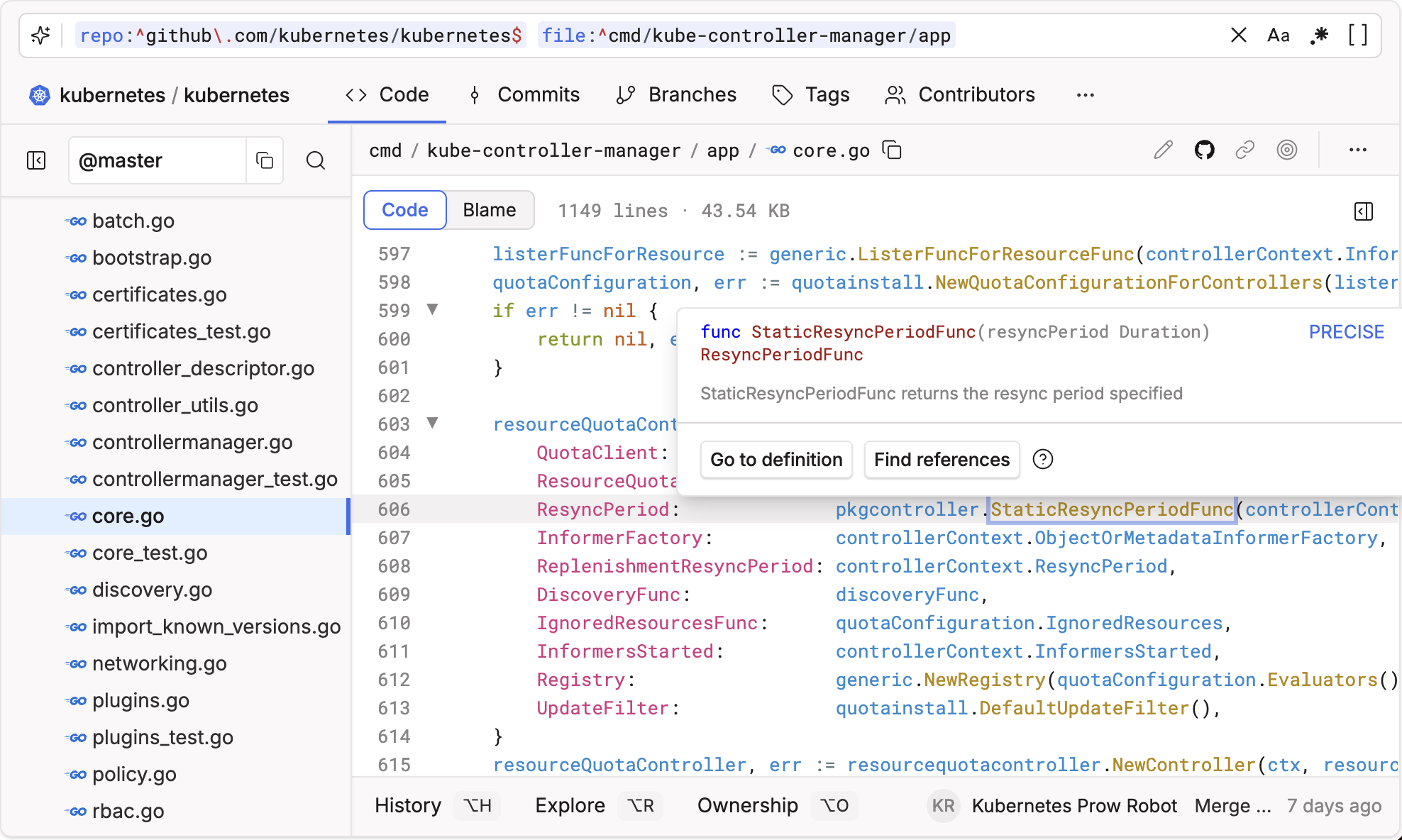
Hovers allow you to quickly glance at the type signature and accompanying documentation of a symbol definition without having to context switch to another source file (which may or may not be available while browsing code).
Go to definition
When you click on the Go to definition button in the hover or click on a symbol's name (in the sidebar or code view), you will be navigated directly to the definition of the symbol.
Find references
When you select Find references from the hover, a panel at the bottom of the page lists all references, definitions, and implementations found for both precise and search-based results (from search heuristics).
Perform an Action
Code Search allows you to harness the power of Search and quickly find, discover, and understand code. However, the end result isn't always to view the results of a search query. Code Search empowers you to perform an action given a set of results.

When browsing code, you can perform the following actions:
Deep Search
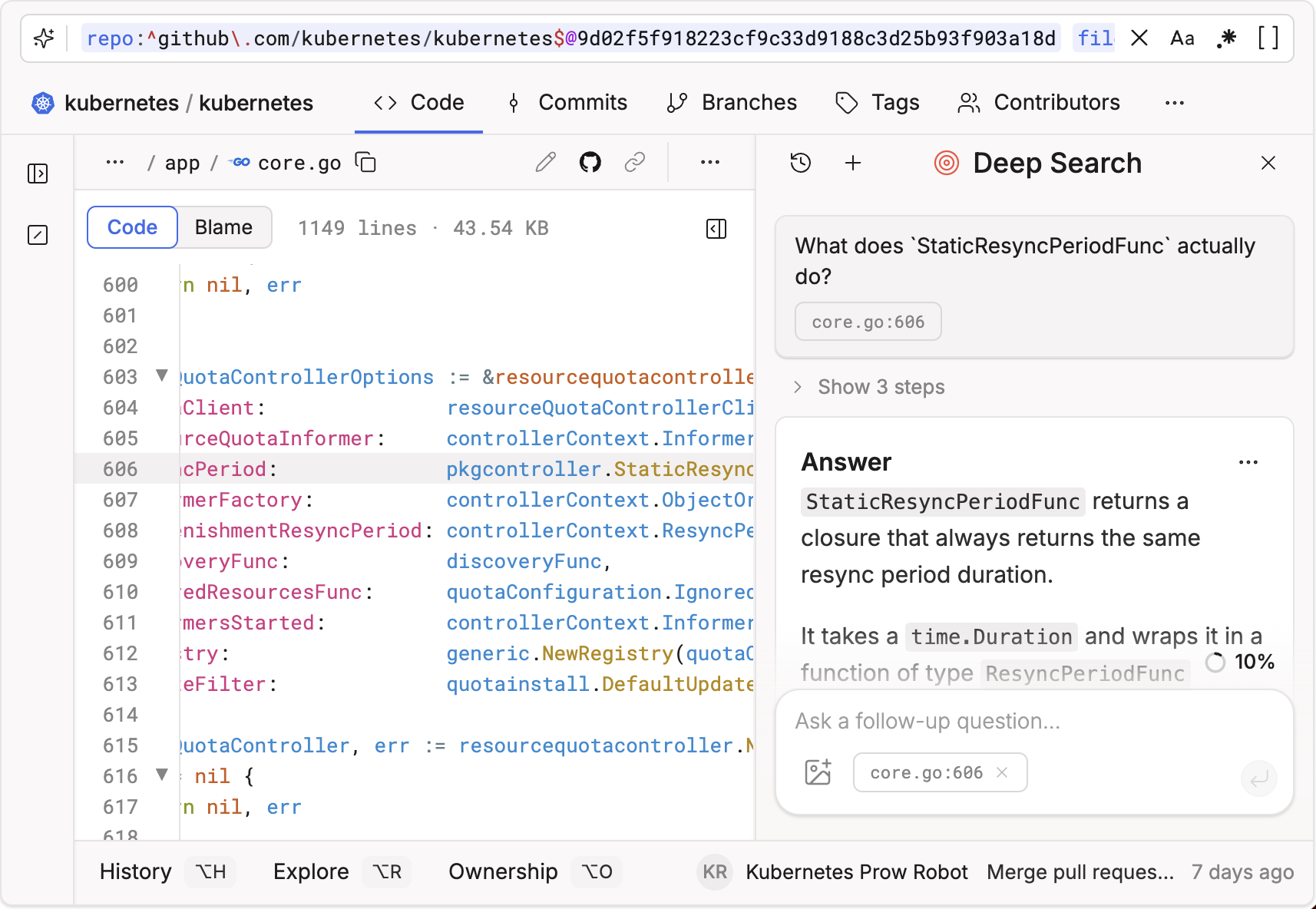
Deep Search is an agentic code search tool that understands natural language questions about your codebase. When browsing code on Sourcegraph, you can open Deep Search from the sidebar to ask questions about the code you are viewing.
Deep Search performs an in-depth search across your codebase and returns a detailed, sourced answer. You can continue the conversation with follow-up questions to dive deeper into relevant code.
Open in Editor
When viewing a file in Sourcegraph, you can open it in your editor of choice to edit the file. This allows you to seamlessly transition from browsing code in Sourcegraph to editing code in your preferred code editor.
When you click the Open in Editor button, Sourcegraph will detect which editor you have configured and open the file in a new tab in that editor. If you have not configured a default editor, Sourcegraph will prompt you to select an editor before opening the file.
You can read more about this here.
View History
The View History action allows you to see the full commit history for a file directly in Sourcegraph.
When you click this button, a sidebar will open showing every commit that touched the file, ordered chronologically from newest to oldest. For each commit, you can view the following:
- Commit message
- Author
- Date
- Commit SHA
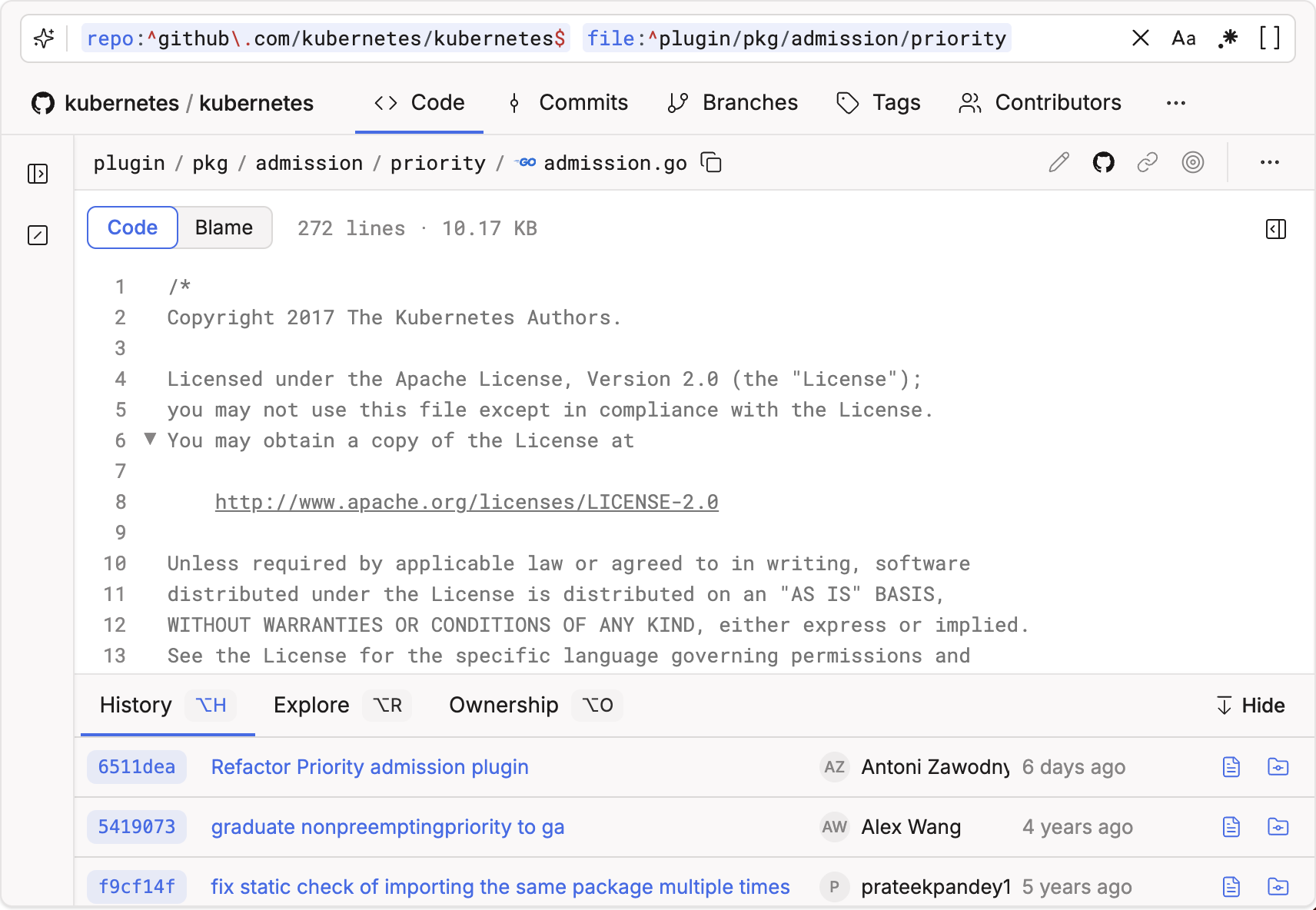
You can click on any commit to view the full diff and see exactly what changed in that particular version of the file.
Exploring the history of a file helps you understand how it evolved over time and why certain changes were made. This additional context can be invaluable when trying to modify or debug code.
The file history integrates tightly with other Sourcegraph navigation features. You can seamlessly transition from browsing history to blaming lines or searching for references.
Blame
The Blame action shows annotation on each line of a file indicating the last commit that modified the line and who the author was.
When you click this button on a file, blame information will be displayed inline. This allows you to easily see the history of every line, without having to explore the full file history. Blame tells you:
- The commit that last modified each line
- The author who made the change
- The commit message
- The timestamp of when it was changed
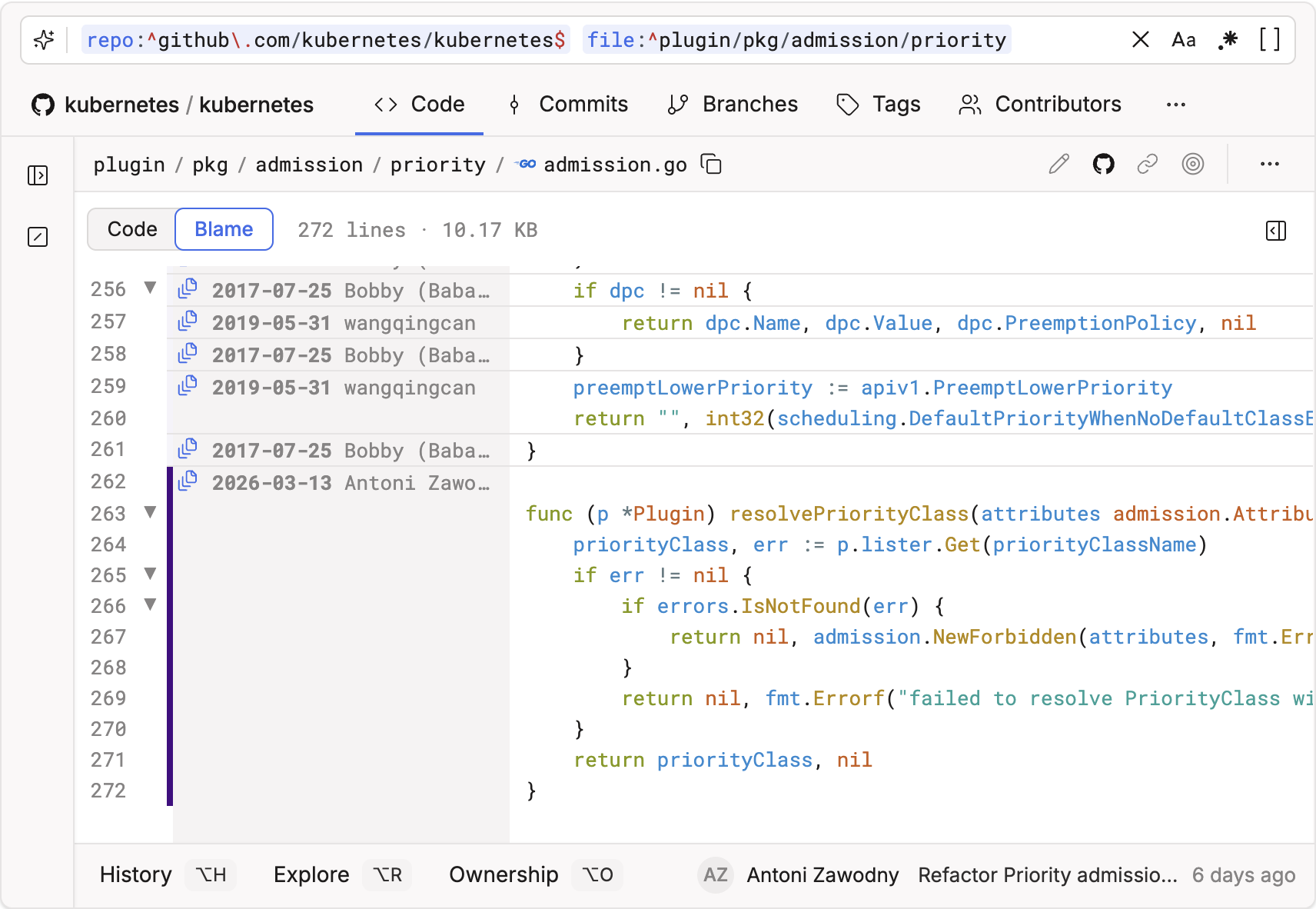
Using blame makes it easy to answer questions like:
- Who wrote this line of code originally?
- When was this method added?
- What changes were made in this commit?
You can click on any commit in the blame view to explore that snapshot of the file and see the full diff.
Blame data is essential when modifying or debugging existing code in a shared codebase. It helps identify who to talk to when you have questions about particular sections of code.
Open in Code host
The Open in CodeHost button allows you to quickly view the file in its native code host. When you click this button, the file will open in a new browser tab taking you directly to that file on the code host website.
For example, if you are viewing a file from a GitHub repository in Sourcegraph, clicking Open in CodeHost will open GitHub.com in a new tab with that file displayed.
Permalink
The Permalink action allows you to easily copy a link to the exact line range you are viewing in Sourcegraph. When you click this button, the link is copied to your clipboard. You can then paste the link in any text field or document.
Raw download
The Raw download action allows you to download the raw file contents displayed in Sourcegraph. When viewing code, click the Raw download button to save the file to your machine.
Line Wrapping
The Line Wrap toggle allows you to wrap long lines that extend past the width of the code viewer. When enabled, any line longer than the window width will wrap to the next line, similar to text in a document. This makes it easier to read code snippets with very long lines without having to scroll horizontally.
-
When disabled (default), long lines will extend past the edge of the window, requiring horizontal scrolling to see the full line.
-
When enabled, lines will break to the next line before hitting the window edge.
Toggling line wrapping on and off helps optimize code readability depending on personal preference.
Wrapped lines are visually indicated with a faint vertical line connecting the split sections. Hovering also reveals the full continuous line.
Line wrapping does not modify the actual code contents - it is purely a visual modification. Downloaded files will contain the original non-wrapped lines.